VR media player / Meta Quest

JustScreen
Your movies. On a screen without limits.
Turn your local media library into a private, highly configurable VR screen on Meta Quest.
- Free
- Local-first
- No accounts
- No analytics
Available

Why JustScreen
Your movies. Your screen. Nothing in the way.
JustScreen is a free app for Meta Quest virtual reality headsets. It is made for people who keep their own movies and TV shows on a computer, NAS or media server at home. JustScreen finds that collection on the local network and plays it on a large virtual screen that you can size and position as you like.
It comes with no movies and no subscription: you watch the media you already have. JustScreen is available now on the Meta Horizon Store.
Make the screen yours
Four presets. Fine control over the whole screen.
One unified library
Movies and TV shows, together in one place.
Private by design
No social features. Your media and history stay local.
01 / Your screen
Make the screen yours.
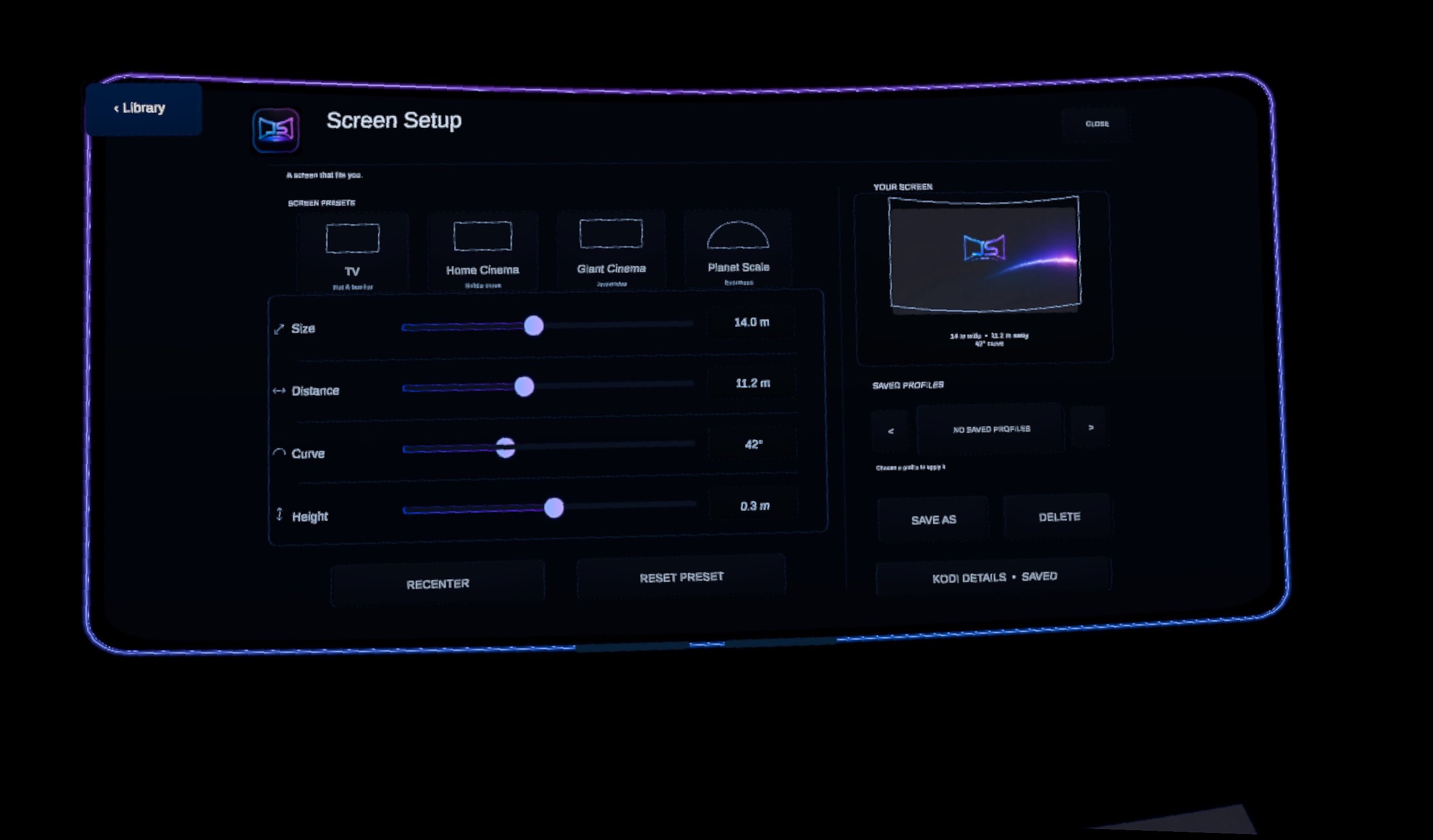
TV size. Home cinema. Giant Cinema. Completely ridiculous. Adjust size, distance, curve and height until the screen feels exactly right.
- TV
- Home Cinema
- Giant Cinema
- Planetary
Recenter or reset a preset. Save screen profiles for the views you like.

02 / Your collection
One library.
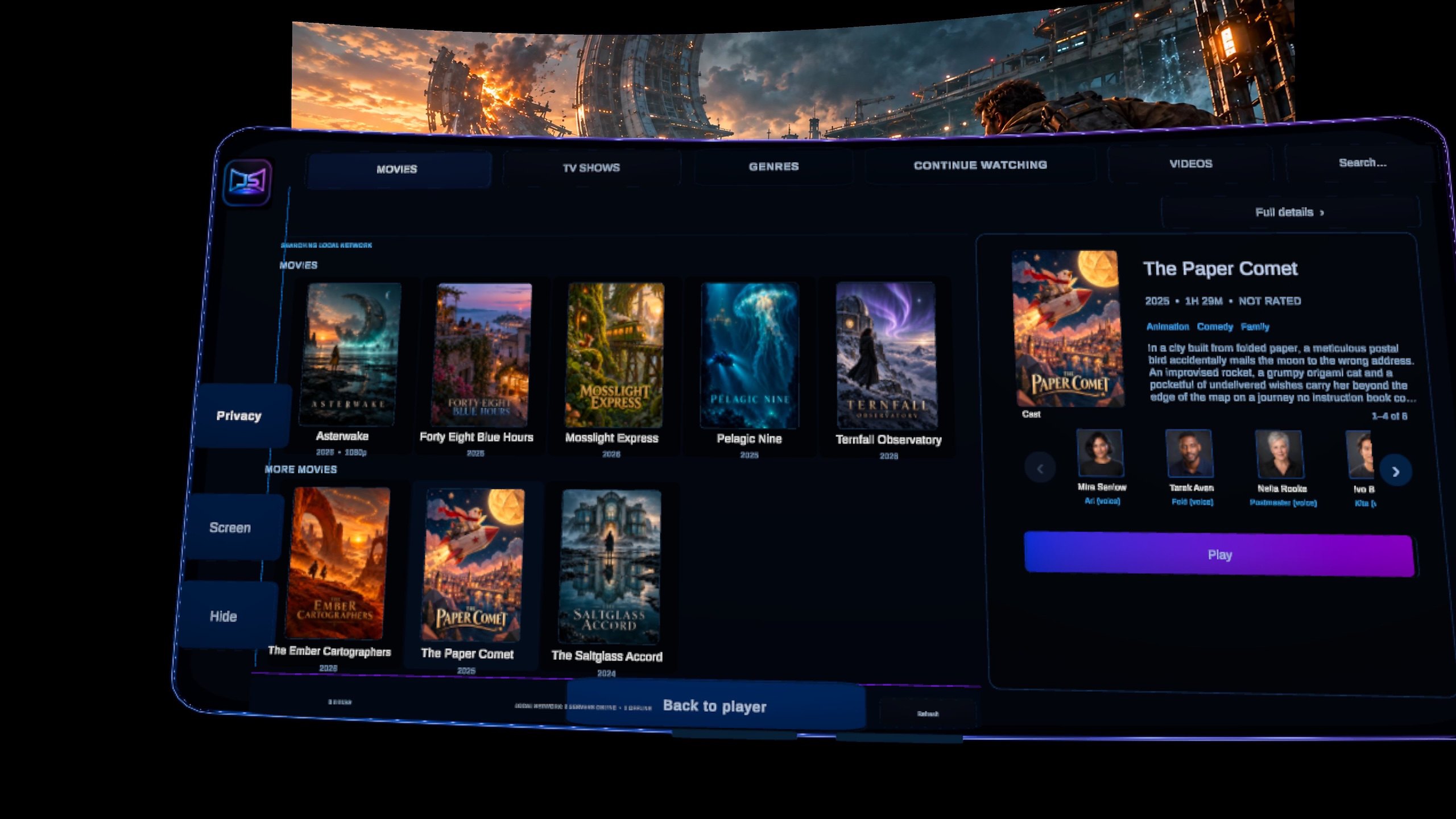
Movies and TV shows from supported local sources, brought together in one place. Search, browse genres, or pick up with Continue Watching.

03 / Beyond the poster
Rich when your server is.
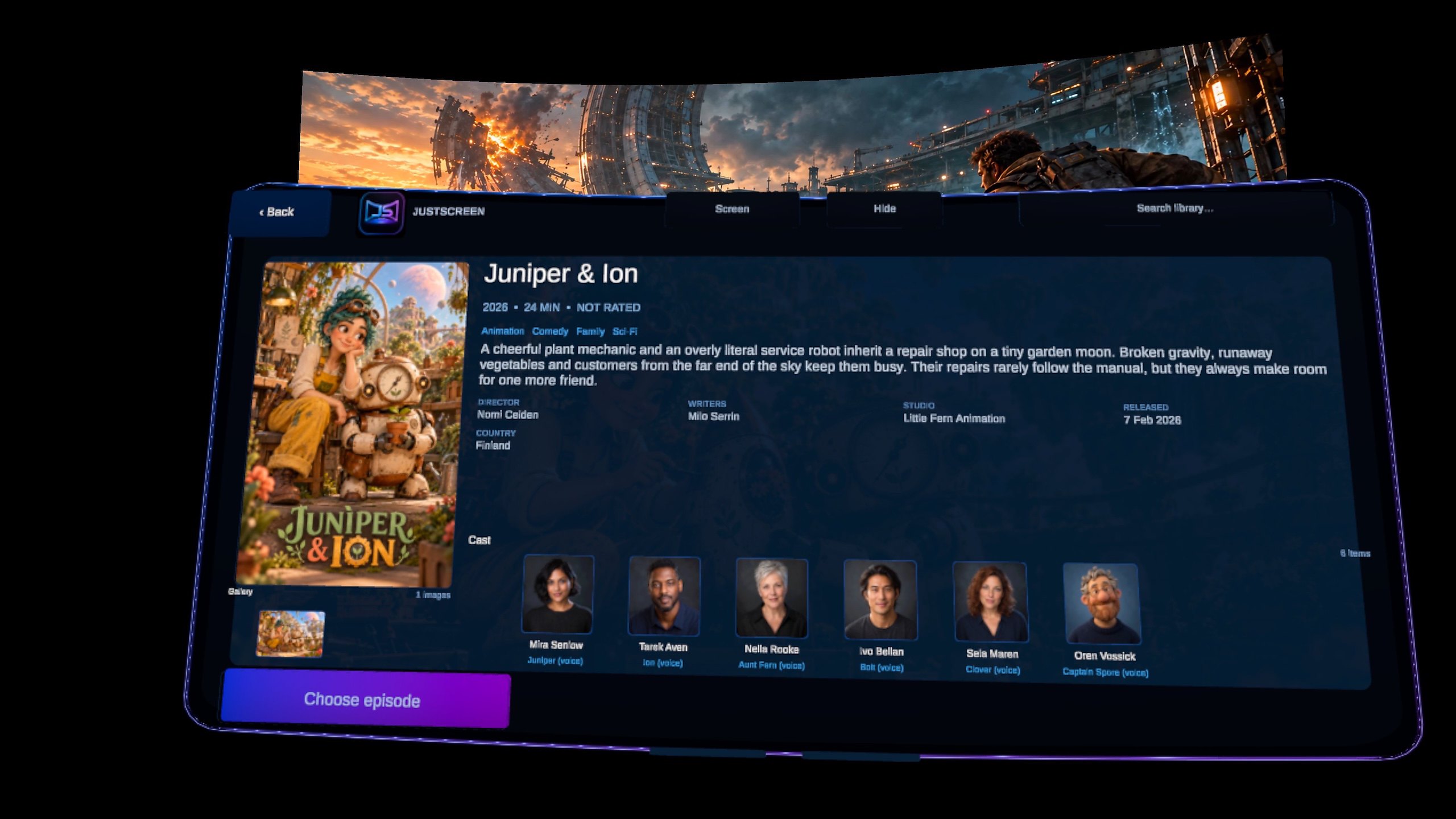
Basic UPnP still works. Kodi and other richer local providers can add posters, fanart, descriptions, cast, genres, studios and technical details.
Simple when your server is simple. Rich when it isn’t. Kodi is optional.

04 / The next episode
TV shows done properly.
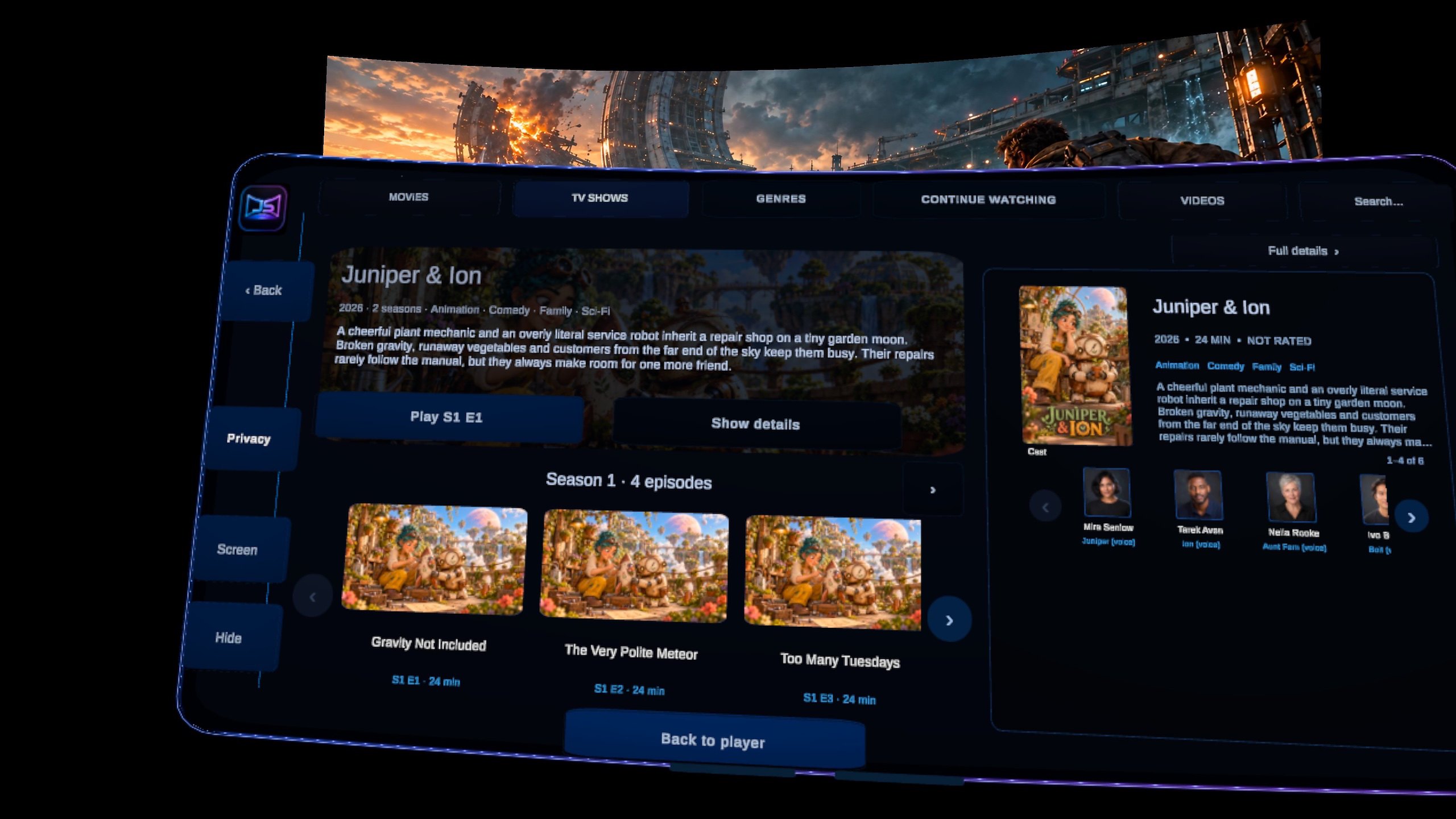
Find a series, browse its seasons, and choose an episode. Episode artwork and descriptions help you decide what to watch next. Resume from a saved playback position when available.

Privacy TL;DR
Private by design.
- No account
- No ads
- No analytics
- No tracking
Your media library, playback history, settings, artwork cache and optional Kodi credentials stay on your headset or local network.
Normal playback stays on your local network. Nothing is sent to valisdk during normal app use.
Read full privacy policyA few useful details
Before you settle in.
Does JustScreen include movies?
No. JustScreen plays your own media. It includes no movies, bundled catalogue or streaming subscription.
What media servers does it support?
Compatible UPnP/DLNA servers, including Kodi, Jellyfin, Plex and Synology setups with local sharing enabled. Support depends on the server and its configuration.
Does it require internet?
Normal local browsing and playback need no internet connection or JustScreen cloud service. Your headset and media server must share a local network.
Your next screen
Available on Meta Quest
Free to use. Built around the media you already own.
Follow JustScreen’s development, get setup help and share your feedback in the valis.dk Discord.